

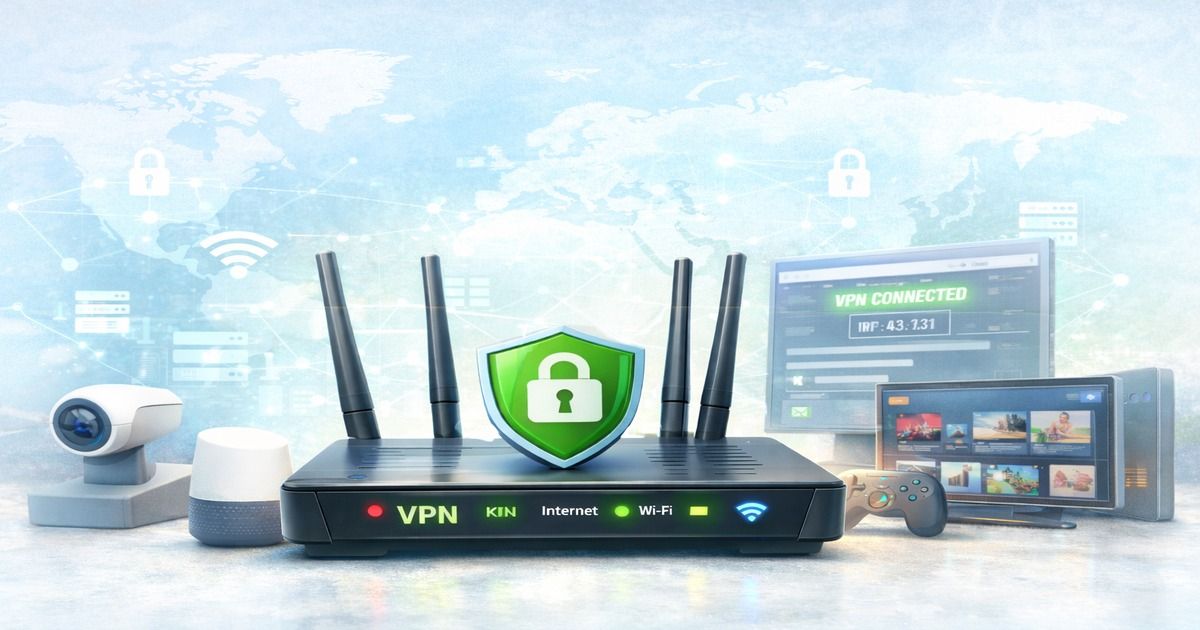
How to Install VPN on Routers
Secure your entire home network with one VPN setup.
On this page
What Does It Mean to Install a VPN on a Router?
Installing a VPN on a router means that all internet traffic passing through your home or office network is encrypted automatically. Unlike installing a VPN app on individual devices, a router-level VPN protects smart TVs, gaming consoles, IoT devices, and even guests’ devices without additional setup.
This approach is ideal if you want:
- Whole-network privacy
- Fewer VPN app installations
- Protection for devices that don’t support VPN apps
Benefits of Using a VPN on a Router
- 🔒 Network-wide encryption – every device is protected
- 🌍 Bypass geo-restrictions on Smart TVs & consoles
- 🧠 One-time setup instead of installing apps everywhere
- 🛡️ Always-on VPN (no accidental disconnects)
What You Need Before Installation
Before installing a VPN on your router, make sure you have:
- VPN subscription that supports router installation (e.g. NordVPN, Surfshark, ExpressVPN)
- Compatible router (or custom firmware)
- VPN OpenVPN or WireGuard configuration files
- Router admin access
Router Types That Support VPNs
1. Routers with Built-in VPN Support
Some routers allow VPN configuration directly from their admin panel.
Common brands:
- ASUS (ASUSWRT)
- TP-Link (selected models)
- Netgear (advanced models)
2. Routers with Custom Firmware
If your router doesn’t support VPNs natively, you can install custom firmware:
- DD-WRT
- OpenWRT
- Tomato
⚠️ Flashing firmware incorrectly can brick your router.
How to Install VPN on a Router (Step-by-Step)
Step 1: Log in to Router Admin Panel
Open your browser and go to: 192.168.0.1 or 192.168.1.1
Enter admin credentials.
Step 2: Find VPN Client Settings
Look for:
- VPN Client
- OpenVPN Client
- Advanced > VPN
Step 3: Upload VPN Configuration Files
Download .ovpn or WireGuard files from your VPN provider dashboard.
Upload:
- Server config file
- Username & password (if required)
- Encryption settings (auto is usually fine)
Step 4: Connect and Test
Enable the VPN connection and check:
- IP address location
- Internet speed
- DNS leak protection
Pros
- Protects all devices automatically
- Ideal for Smart TVs & consoles
- Always-on security
- Fewer app installs
Cons
Best VPNs for Router Installation (2026)
- NordVPN – best balance of speed & security. Read my detailed review
- Surfshark – unlimited devices + WireGuard
- ExpressVPN – easiest router firmware
- PureVPN – budget-friendly router support
Common VPN Router Issues & How to Fix Them
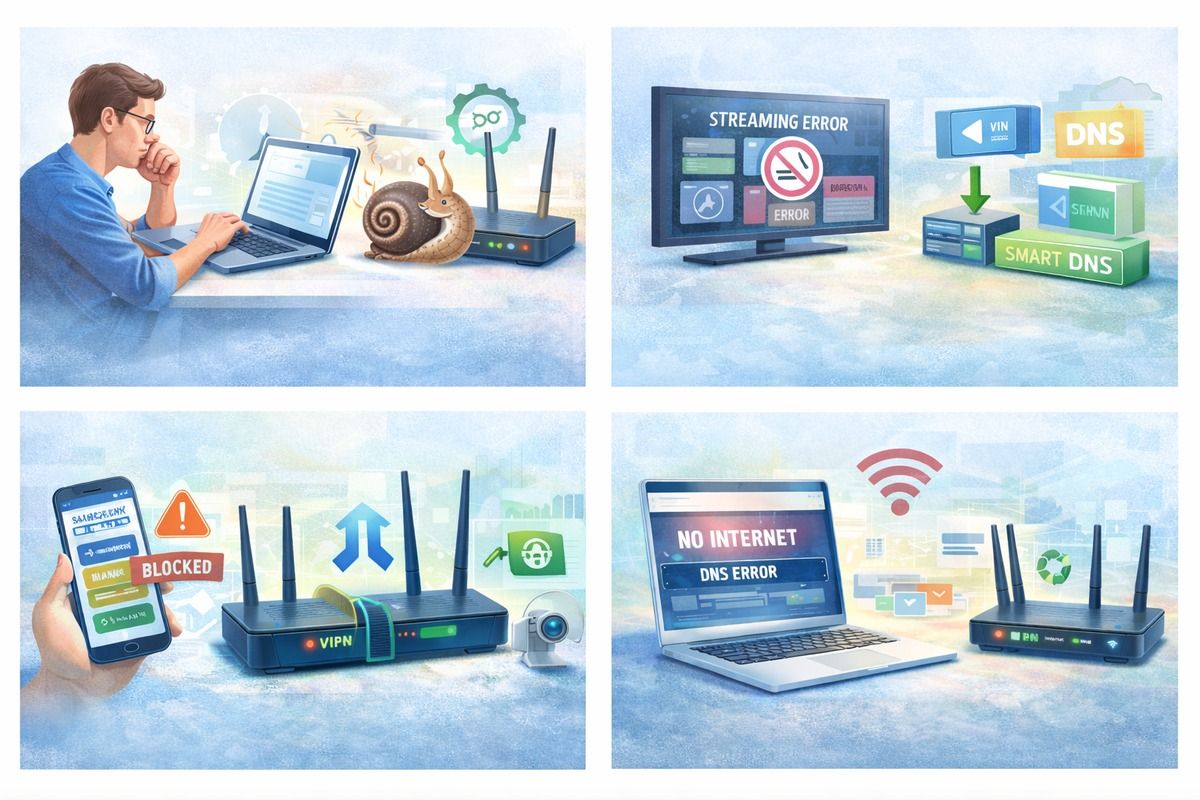
🐌 Slow Internet Speeds
If your internet connection becomes noticeably slower after enabling a VPN on your router, the most common reason is insufficient router processing power.
Why it happens:
- VPN encryption is CPU-intensive
- Budget routers struggle with OpenVPN
- Older routers lack hardware acceleration
How to fix it:
- 🔄 Switch VPN protocol
Use WireGuard instead of OpenVPN whenever possible — it’s significantly faster and more efficient. - 🖥️ Upgrade your router hardware
Look for routers with at least:- Dual-core CPU (1.5 GHz or higher)
- 256–512 MB RAM
- 📍 Choose a closer VPN server
Select a server in your country or neighboring region to reduce latency. - 🔐 Lower encryption level (advanced users)
Some routers allow switching from AES-256 to AES-128 for better performance.
📺 Streaming Services Not Working

Streaming platforms like Netflix, Hulu, BBC iPlayer, or Amazon Prime actively block VPN IP addresses.
Why it happens:
- VPN IP is blacklisted by the streaming service
- Wrong server region selected
- DNS conflicts
How to fix it:
- 🌍 Switch VPN server location
Try multiple servers within the same country. - 🎥 Use streaming-optimized servers
Some VPN providers label specific servers for streaming. - 🧩 Enable Smart DNS (if available)
Smart DNS often works better for TVs and consoles. - 🔀 Use split tunneling
Route streaming devices outside the VPN if blocking persists.
Read my article about the best VPNs for streaming
🚫 Some Devices or Apps Don’t Work
Certain apps, websites, or devices may stop working when all traffic is routed through a VPN.
Common examples:
- Banking apps
- Local government websites
- Smart home devices
- Work or corporate services
How to fix it:
- 🔀 Enable split tunneling (policy routing)
Allow specific devices or IP addresses to bypass the VPN. - 🏠 Exclude local network traffic
Make sure LAN traffic is not forced through the VPN tunnel. - 📱 Move sensitive apps to a non-VPN network
Especially useful for banking and payment apps.
❌ No Internet Connection After VPN Setup
If your internet stops working completely after enabling the VPN, this is usually caused by incorrect DNS or routing settings.
Why it happens:
- Incorrect DNS servers
- VPN connection established but traffic not routed
- Firewall rules blocking traffic
How to fix it:
- 🌐 Manually set DNS servers
Use reliable DNS such as:
1.1.1.1 / 1.0.0.1(Cloudflare)8.8.8.8 / 8.8.4.4(Google)
- 🔁 Restart router and modem
- 📄 Re-import VPN configuration files
- 🔍 Check routing table Ensure default traffic is routed through the VPN tunnel.
💡 Pro Tip
If you frequently experience issues with router VPNs, consider:
- A dedicated VPN router
- Running VPN only on selected devices
- Using a hybrid setup (router VPN + apps)
This approach balances speed, compatibility, and privacy.
FAQ: VPN on Routers
Q1: Is installing a VPN on a router safe? Yes, it’s one of the safest ways to protect your entire network.
Q2: Will VPN slow down my internet? Slightly, but modern routers and WireGuard minimize speed loss.
Q3: Can I use VPN only for some devices? Yes, with policy routing or split tunneling (advanced routers).
Q4: Do all VPNs support routers? No. Always check for OpenVPN or WireGuard router support.
Q5: Is it better than installing VPN apps? For multi-device households — absolutely yes.
Q1: Is installing a VPN on a router safe? Yes, it’s one of the safest ways to protect your entire network.
Q2: Will VPN slow down my internet? Slightly, but modern routers and WireGuard minimize speed loss.
Q3: Can I use VPN only for some devices? Yes, with policy routing or split tunneling (advanced routers).
Q4: Do all VPNs support routers? No. Always check for OpenVPN or WireGuard router support.
Q5: Is it better than installing VPN apps? For multi-device households — absolutely yes.
Final Thoughts
Installing a VPN on your router is one of the most powerful privacy upgrades you can make. It protects every device, works silently in the background, and removes the need for multiple VPN apps.
If privacy, security, and convenience matter to you — router-level VPN is the way to go 🔐
👉 Next step: Choose a VPN with strong router support and start protecting your entire network today.